Sign In
Sign Up
Select Your Country
 Turkey (Türkçe)
 Worldwide (English)
Turkey (Türkçe)
Worldwide (English)
Turkey (Türkçe)
Worldwide (English)
Worldwide (English)
Turkey (Türkçe)
Worldwide (English)
Turkey (Türkçe)
Worldwide (English)
 WELCOME Kupon Kodunu Kullanarak İlk Siparişlerinize Özel %10 İndirim İmkanından Faydalanabilirsiniz.

In this guide, we will explain step-by-step how to connect to proxy services using a browser extension.
Select a suitable extension for the browser you wish to use for the proxy connection. For instance, clients using the Google Chrome browser can access the recommended extension here.
Add the chosen extension to your browser. Once added, click on the extensions icon located at the top right corner of your browser to enable the newly added extension.
After clicking the extensions icon, find the proxy extension in the list and click on it. From the menu that appears, select the "Options" section to go to the extension's settings page.
Next, click on the "Proxy" option from the menu on the left side. On the page that opens, you will need to enter your protocol, server, port, username, and password details.
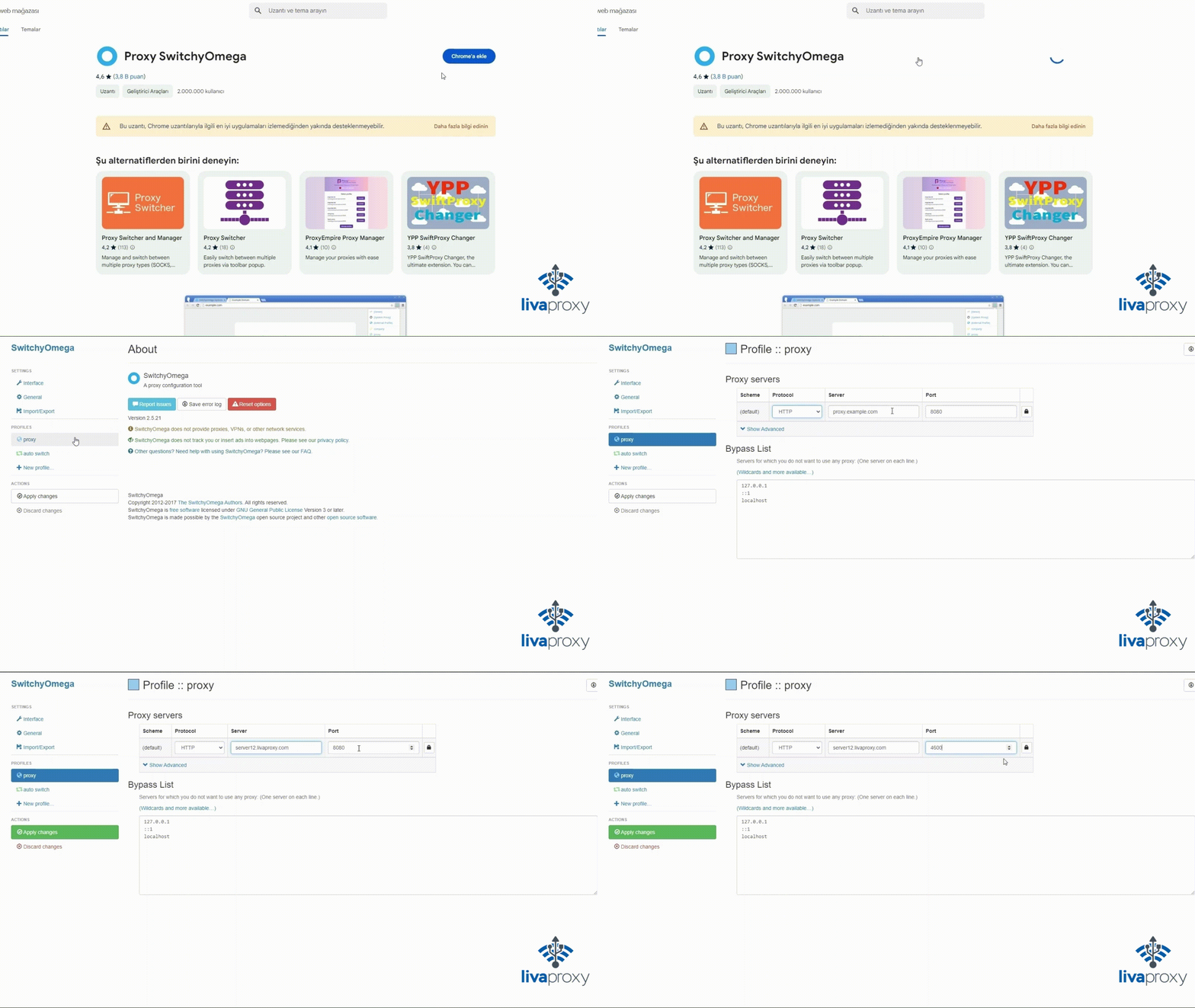
To enter your username and password, click on the lock icon located to the right of the port field and enter your credentials in the window that appears.
After entering the necessary details, click the "Apply Changes" button on the left side menu to save your settings. To activate the proxy service, click on the "Proxy" option in the extension again.
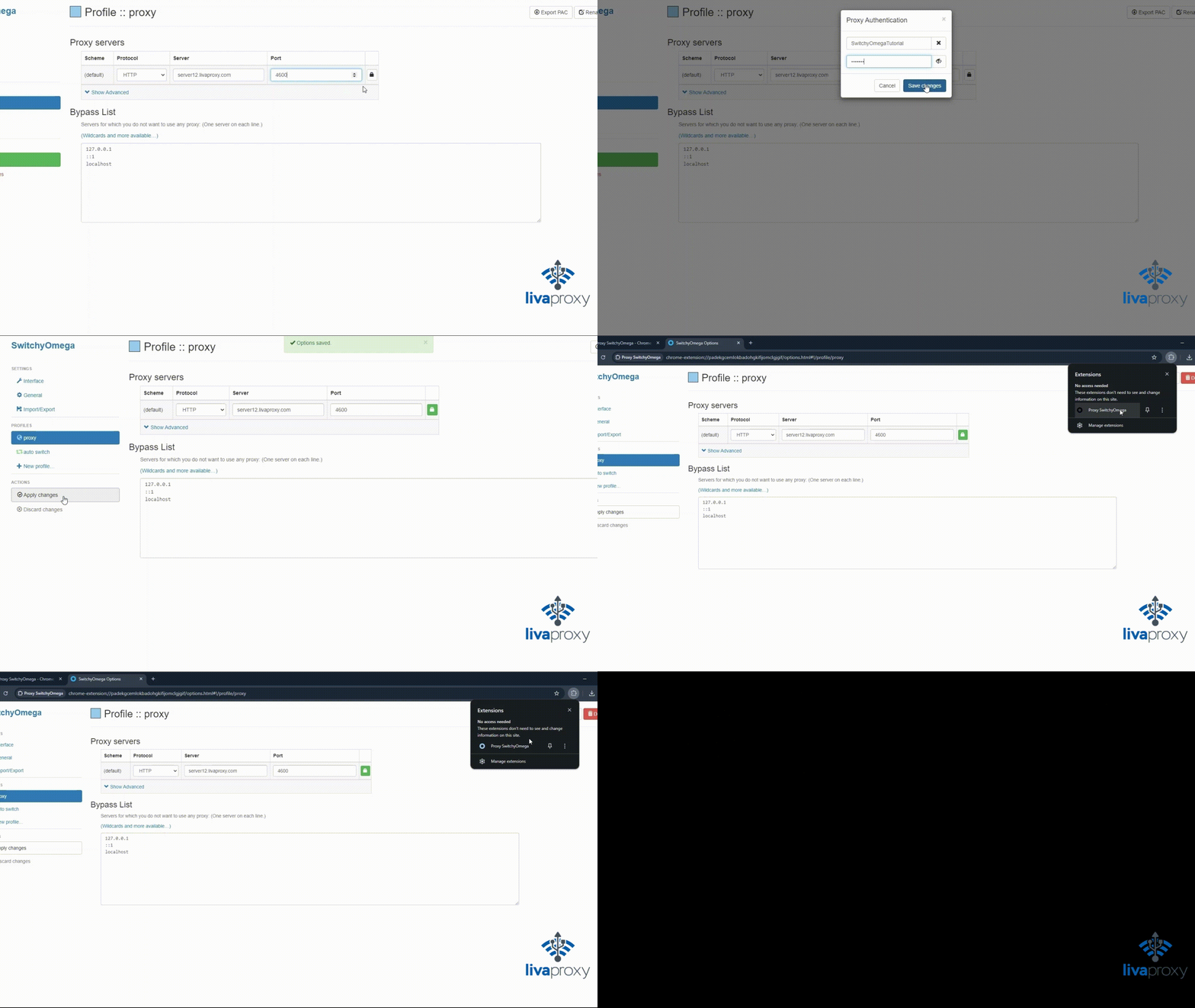
Once this process is complete, your proxy connection will be active. In this case, the proxy service will only be active on the browser where you have established the connection through the extension, and no other browsers or applications will require authentication for the proxy connection.
Thank you for choosing us.
